Introduction to Work Environment
Access the cloud
We will use STFC cloud environment
https://
Use the username given at registration and following instructions to setup your instance.
Create account and login
Go to jupyter.stfc.ac.uk DO NOT CLICK on sign in!
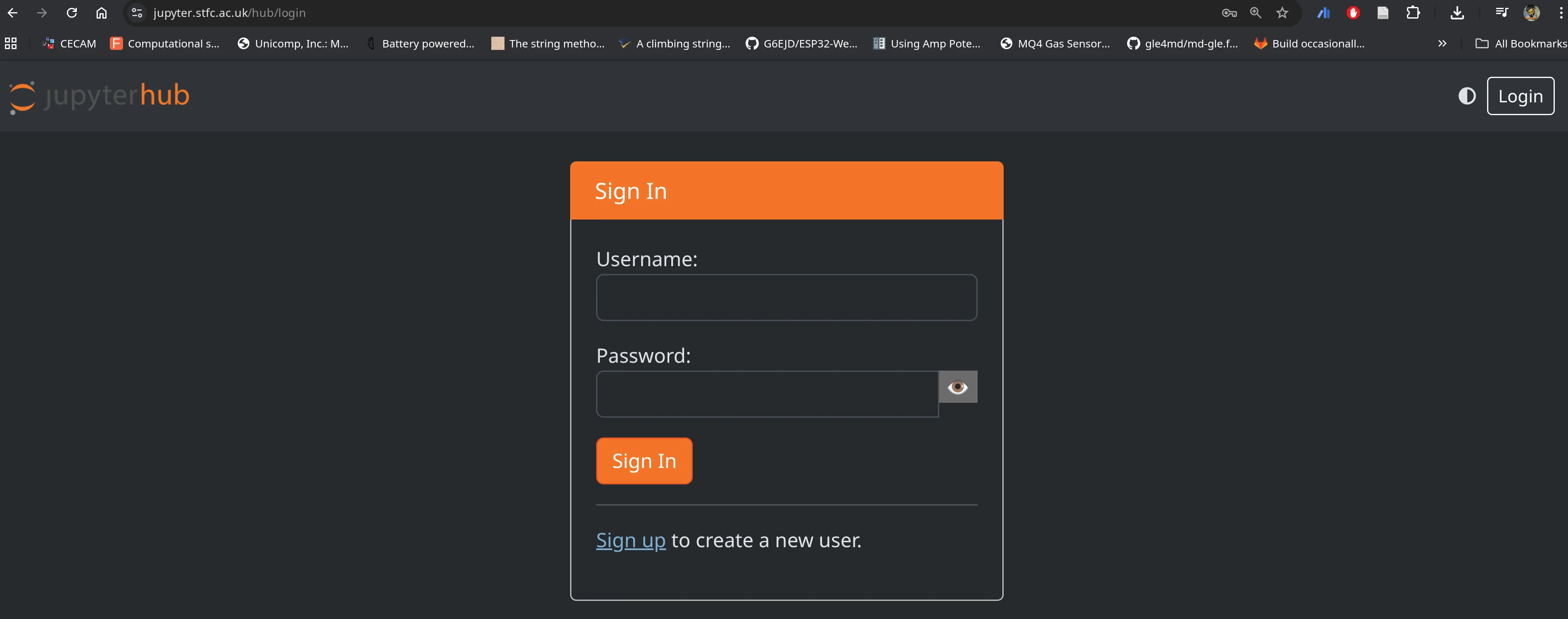
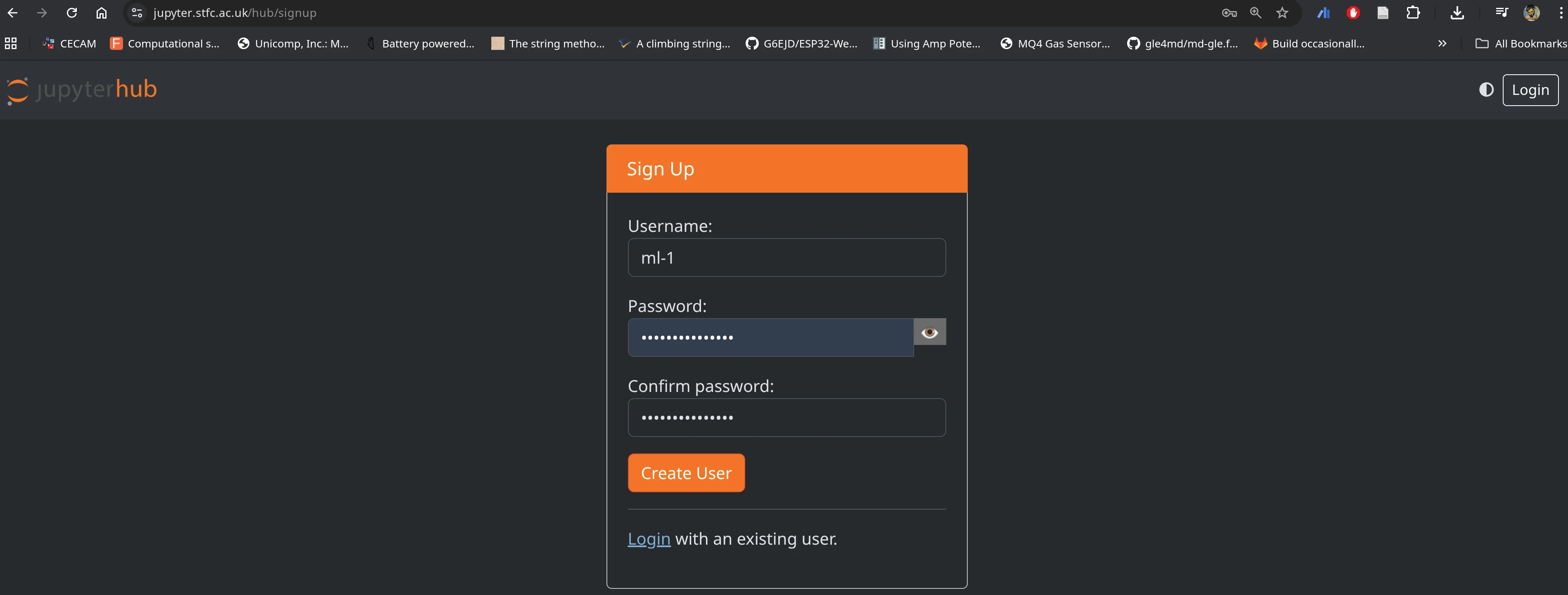
Signup: click on Signup then use the username given and choose password and click Create User
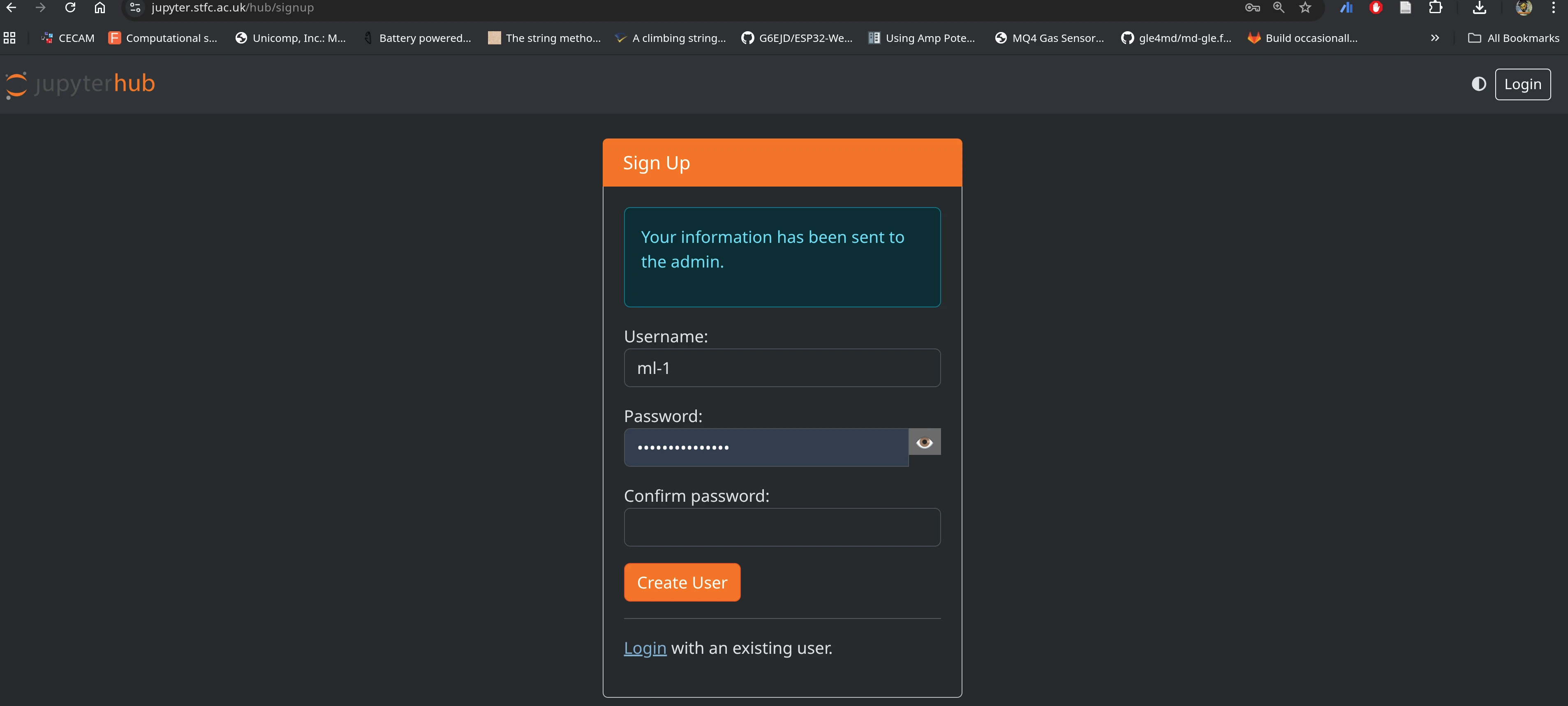
Authorization happens behind the scenes if successful you will see something like.
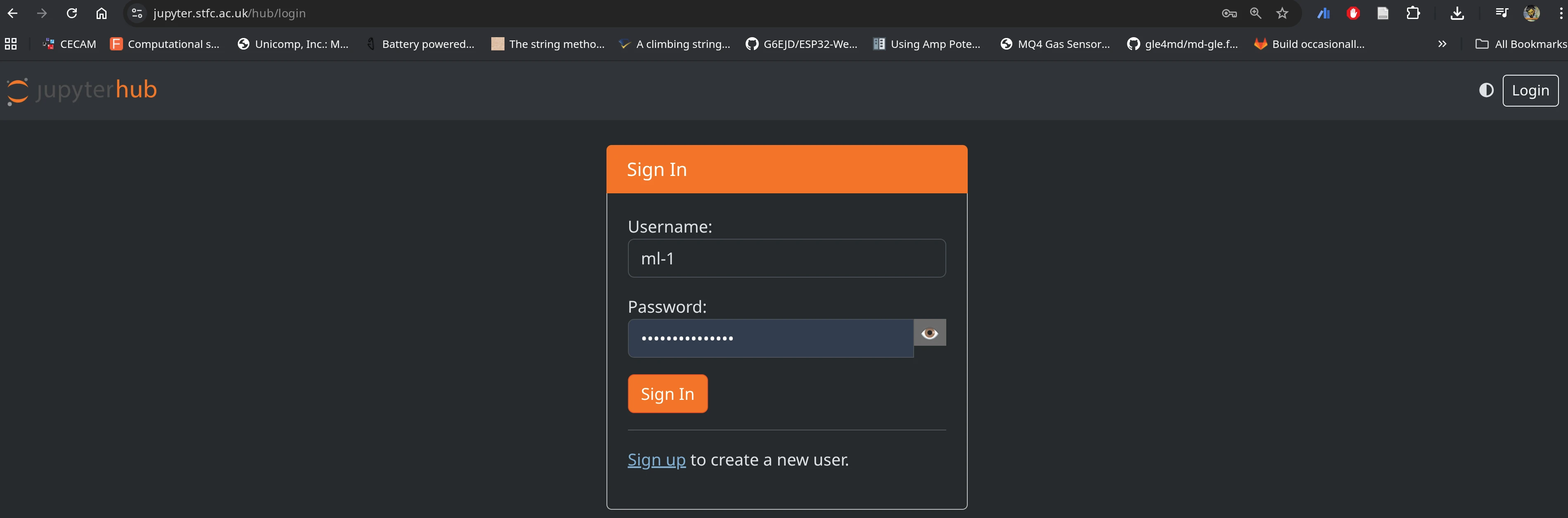
Login with the credentials from above
You shall see something like this, if all ok,
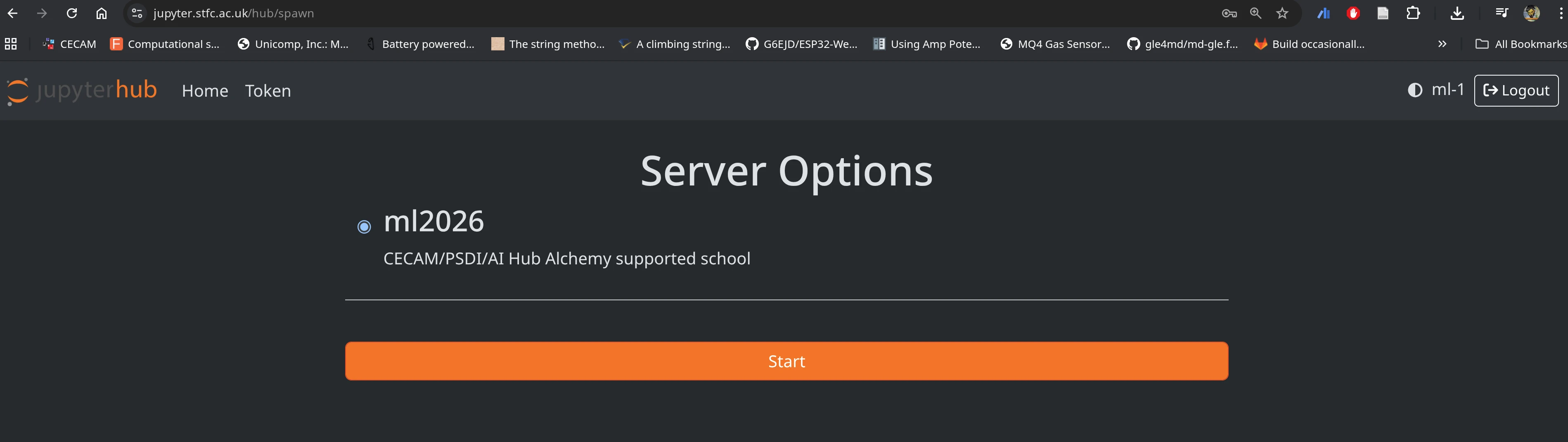
or instance already started. see below.
Create instance
In the list you shall see ml2026, select it and click start.
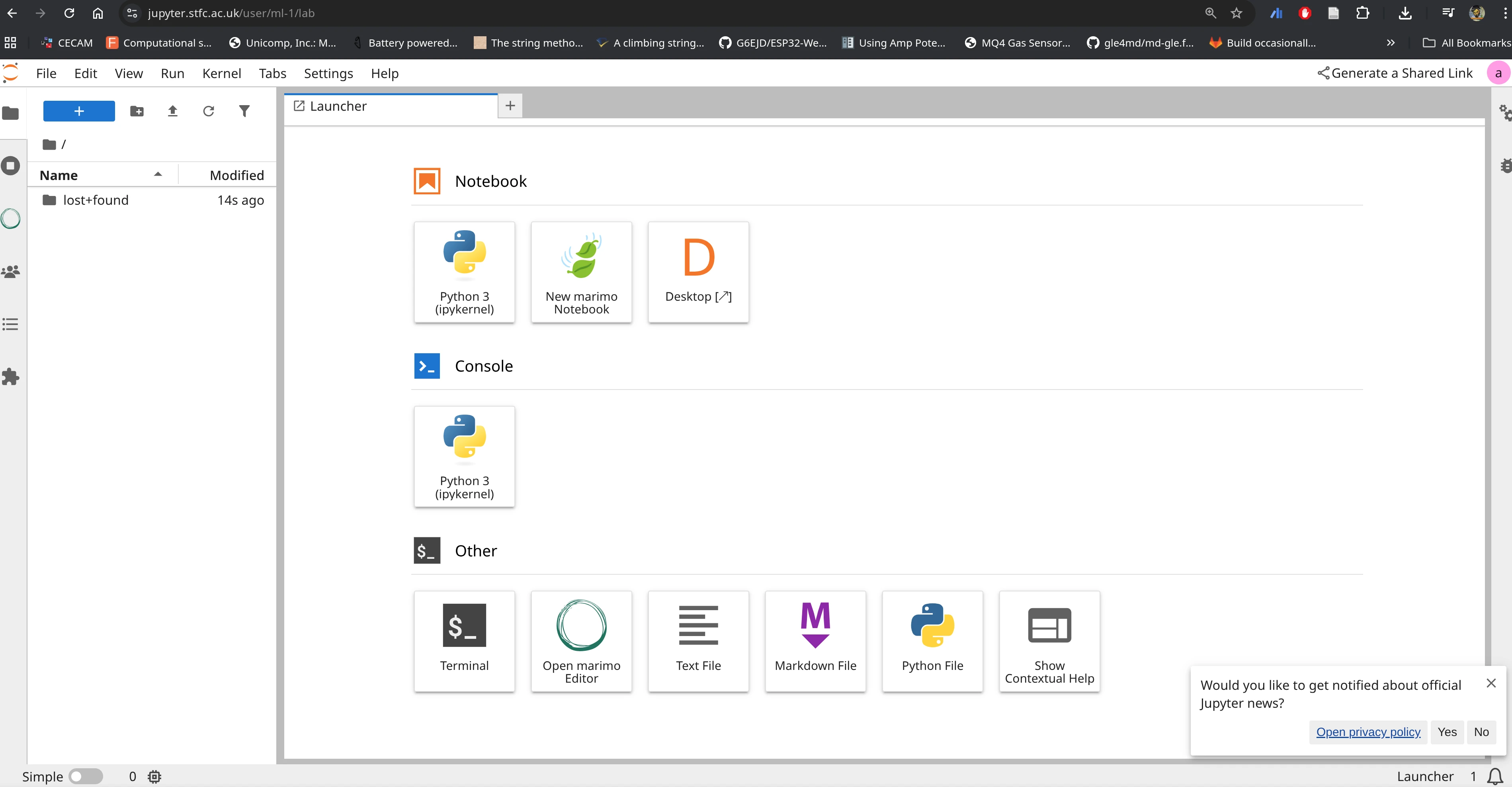
Once you click start will spawn the new VM machine, shall take 2 min or so but sometimes can be faster or slower, which exists for 24h by default and has a persistent home directory associated with your user.
Stop instance and update
if things go wrong or you need to create an instance with an updated image you need to follow the following steps.
get the hub settings: File -> Hub Control Panel
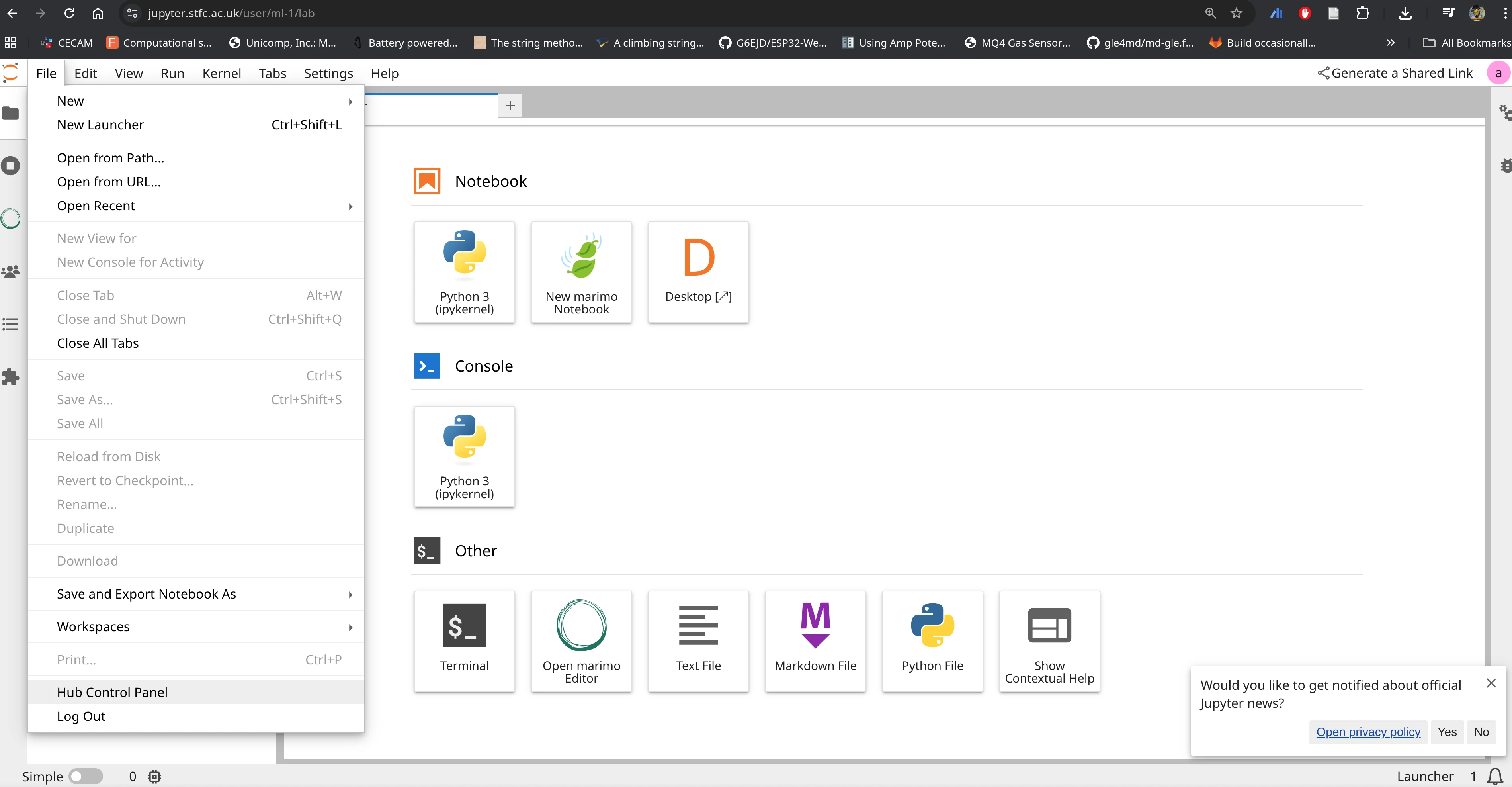
stop the instance
stop the instance by clicking on the “Stop My Server” button then once stopped you can click Logout.

logout and create a new instance as above. This will use the latest version of the image.
Obtain exercises
open a terminal
cd
git clone https://gitlab.com/cam-ml/tutorials.git WORKSHOP
a WORKSHOP folder will appear on the left hand side and now you can navigate inside it and find the relevant notebook of the day.
Useful commands
as tutorials get updated or corrected during the school you may need to pull again, solution or corrections. To do this in general you do
# be sure you are in the right folder
cd ~/WORKSHOP
git pull
if you have local changes, you may want to use
git stashto save your changes, after this you can do git pull
after you can restore your changes with
git stash applyCompilers
The GNU toolchain is used throughout the summer school and are available at the unix prompt.
gcc: the C/C++ compiler
gfortran: the fortran compiler (it assumes f77 and f95 for
*.f and*.f90 respecively). Some of the codes may be in fixed format requiring the compiler flag -ffixed-form.python3 is available on the machine, version 3.12.13
There are several editors available. You should choose whichever you are confortable with.
vi the venerable UNIX screen mode editor.
vim the improved venerable UNIX screen mode editor.
emacs probably the commonest full-screen UNIX editor.
also , nano, pico
Advanced: run locally with docker/podman
Both Docker and podman shall work. We will use pod’man in these instructions.
install podman
Follow the instructions for your operating system. Depending on your OS this may be simpler or more difficult we suggest you do this prior to school.
For Linux your package manager probably already has podman.
For Windows and MacOS choose podman CLI* and install. For windows install wsl2 before be sure you set version 2.
For windows and MacOS start the machines by starting a shell, Windows Powershell in windows any terminal in mac.
# only windows and MacOs
podman machine init
podman machine start
create a folder to share with the machine(optional)
this folder can be sure to get data from the jupyterhub on your local harddrive after you shut it down. Be careful that is not writable to a normal user on your machine, only root on Linux.
mkdir work
# next command is only on linux
podman unshare chown 1001:100 work
start the container
Execute the command in a terminal.
podman run --rm --security-opt seccomp=unconfined -p 8888:8888 -v ./work:/home/jovyan/work:Z harbor.stfc.ac.uk/ccp5/ml2026:latestif you see this error, especially on MAC OSX
Trying to pull harbor.stfc.ac.uk/ccp5/ml2026:latest...
Error: internal error: unable to copy from source docker://harbor.stfc.ac.uk/ccp5/ml2026:latest: choosing an image from manifest list docker://harbor.stfc.ac.uk/ccp5/ml2026:latest: no image found in image index for architecture "arm64", variant "v8", OS “linux"
podman run --rm --security-opt seccomp=unconfined -p 8888:8888 --platform linux/amd64 -v ./work:/home/jovyan/work:Z harbor.stfc.ac.uk/ccp5/ml2026:latestget into the container
At this stage you should have a running jupyter hub, all you need is to start it in your browser. You shall see various debug lines in your terminal, locate Or copy and paste one of these URLs: part and click on one of them.
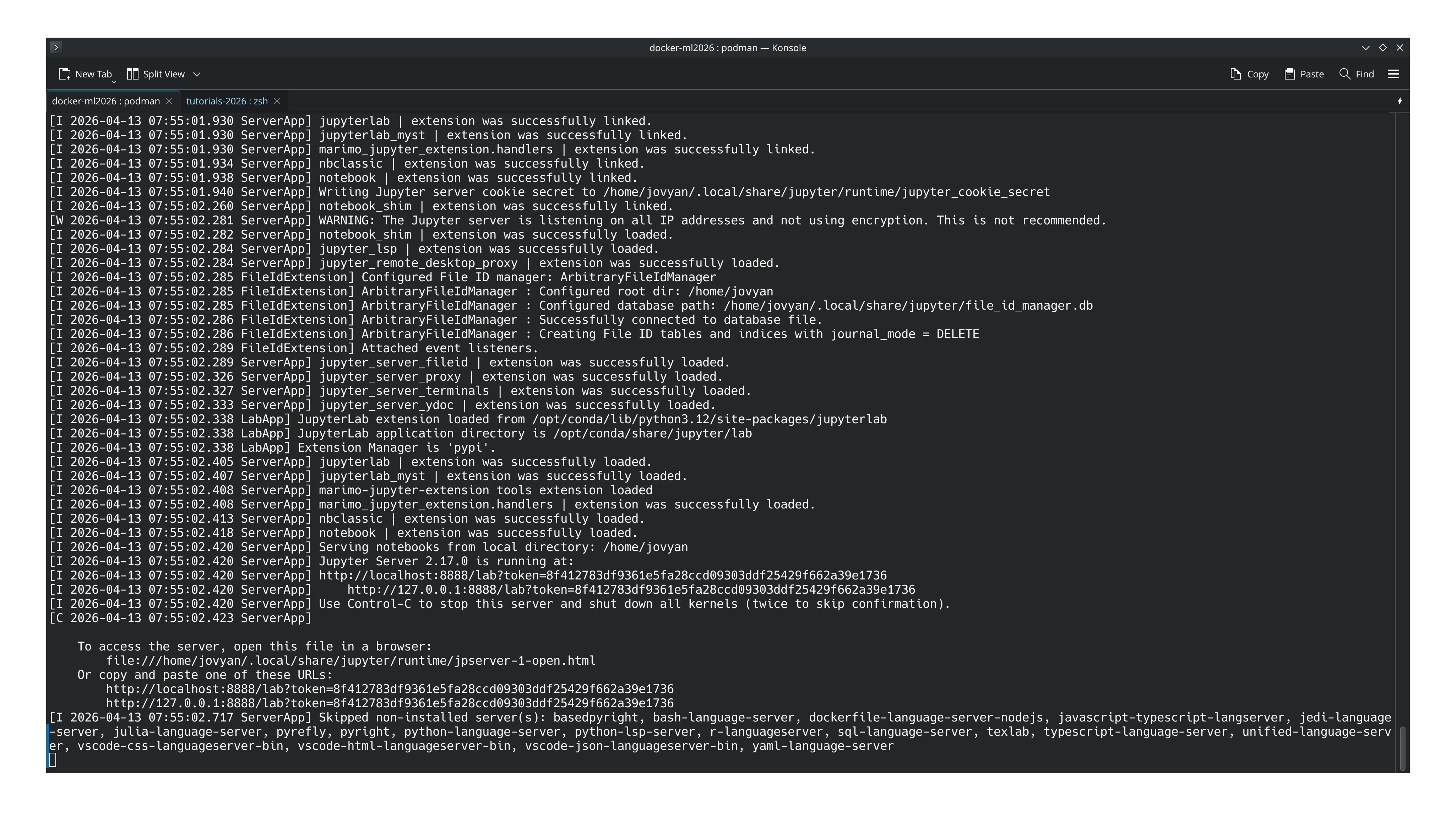
if all is ok you shall see
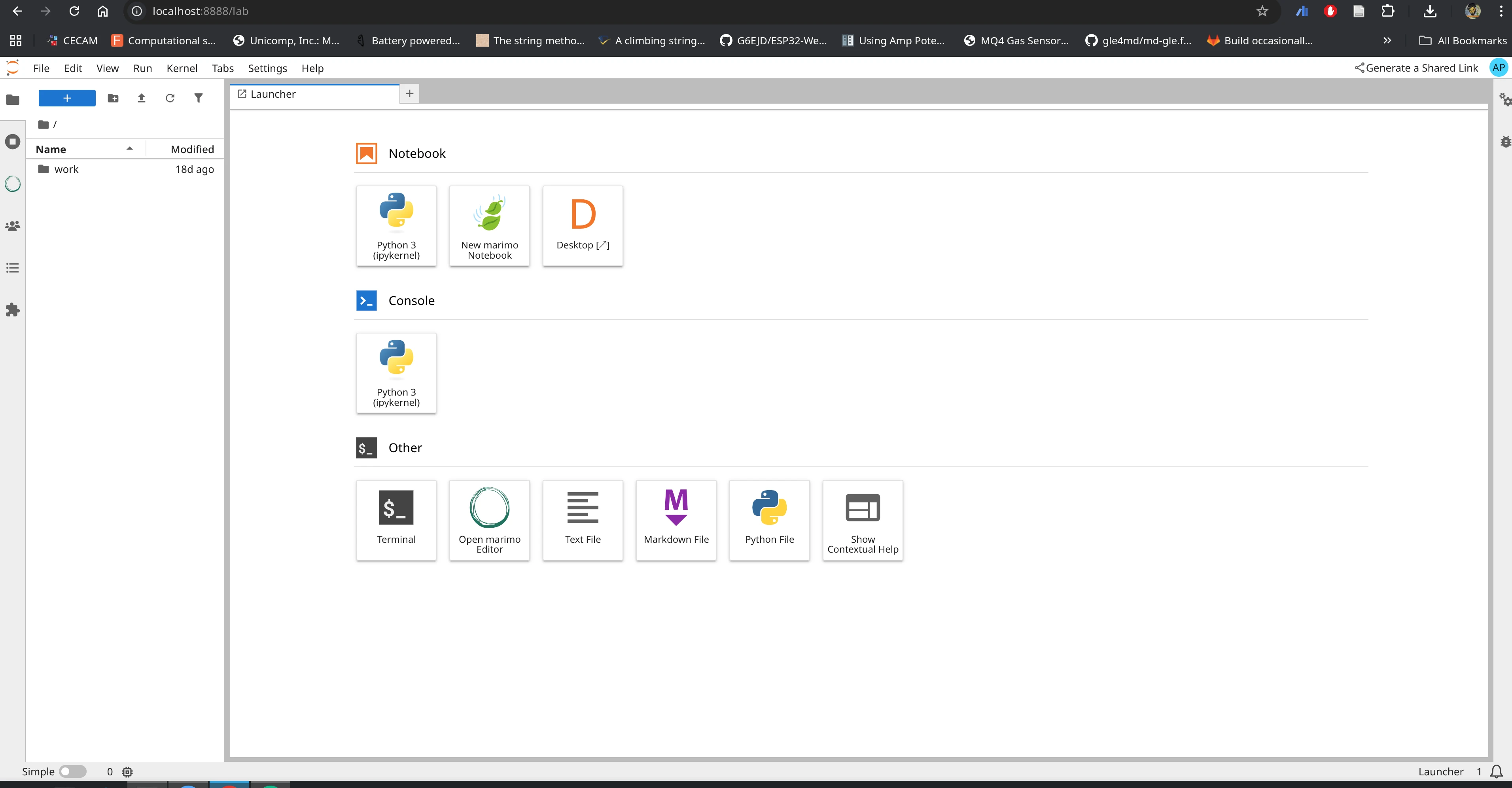
click on Desktop tile to get access to a traditional environment
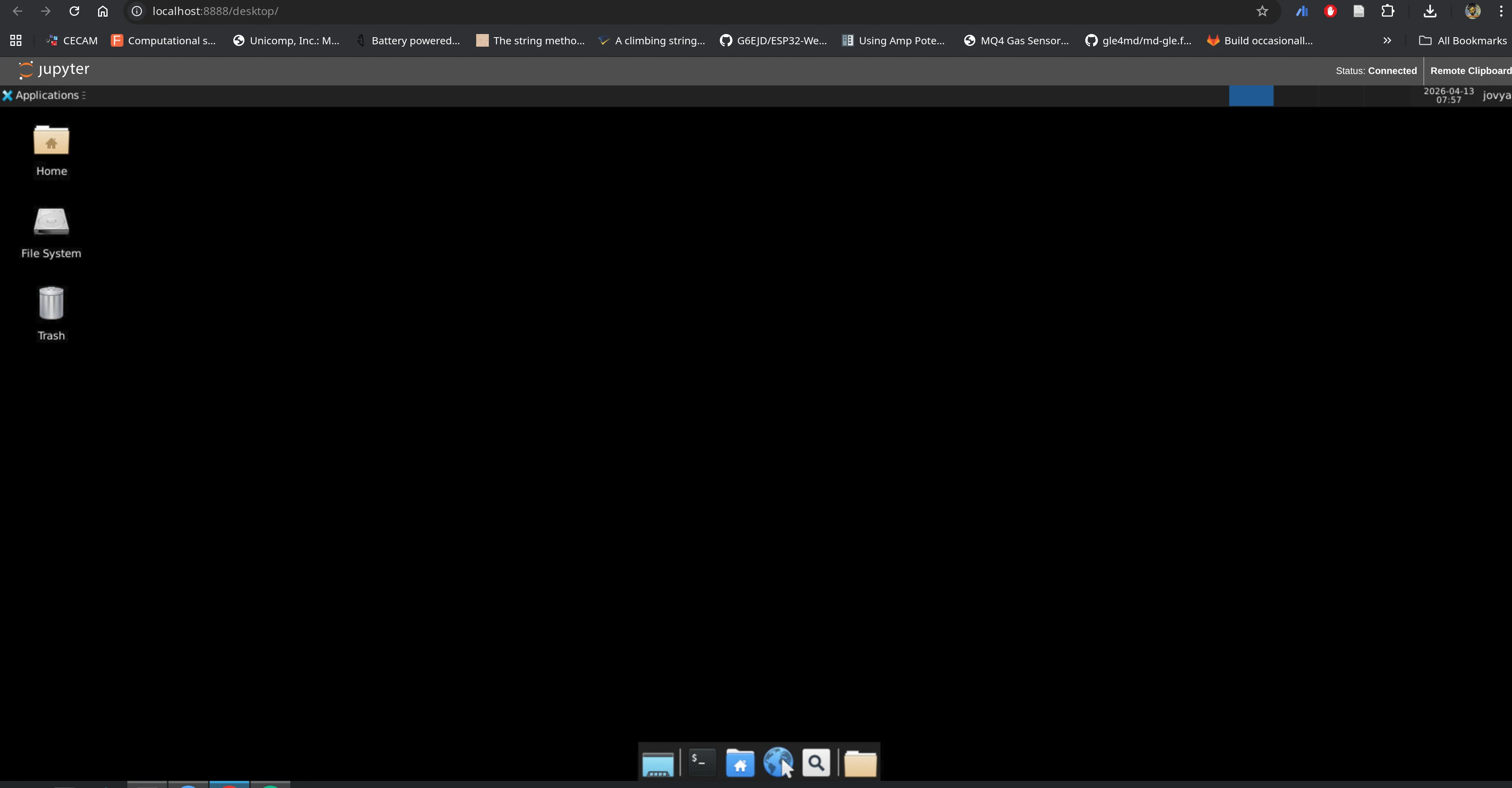
close the container
Ctrl+C in terminal will do it.
keep the image up to date
podman pull harbor.stfc.ac.uk/ccp5/ml2026:latest[optional] If you have an NVIDIA GPU and you want to use, check the instructions here https://
podman -desktop .io /docs /podman /gpu
Note you can change the theme by going to Settings->Theme->
Obtain exercises
open a terminal, clik on the Terminal tile.
cd
# or if you setup the work folder above, uncommend bellow
#cd work
git clone https://gitlab.com/cam-ml/tutorials.git WORKSHOP
a WORKSHOP folder will appear on the left hand side and now you can navigate inside it and find the relevant notebook of the day.
checkout WORKSHOP
Using Google Colab
Run using Google Colab
Get a google account if you do not have one.
Navigate to the desired tutorial on [tutorials website](https://
workshop .camml .ac .uk/) and click the  badge.
be sure you execute the Google colab specific section of each tutorial, shall be one.
Note: google colab instances are not persistent so you may want to save your work in google drive or download it on your machine.